Just had some fun and games with the SharePoint Content Search Web Part (CSWP). I create some content, list and pages, all with there own content type. I was able to view the column "Title" content in the CSWP display, but not able to Sort by "Title" or have it as a Refiner.
So...
I used one of the RefinableString Managed Property. It was tricky to figured out which Mapped crawled property was the correct "Title". These are the ones that worked for me, for my current project.
Mapped crawled property for:
List - Basic:displaytitle
Page - ows_Title
Showing posts with label SharePoint 2013. Show all posts
Showing posts with label SharePoint 2013. Show all posts
Wednesday, 14 June 2017
Monday, 15 June 2015
Content Search Query rules to find all Sub Sites within the Current Site
Query:
contentclass:STS_Web
Path:{Site.URL}
Site<>{Site.URL}
How-to:
- This rule will only show sites. At this stage it shows all the sites across the whole environment.
- This rule will limit the results to sites with the current site. This also include the top level site.
- This rule removed the top level site, thus only showing the sub sites.
- This rule removed the top level site, thus only showing the sub sites.


How to Map the "Expires" date column in the Search Schema for SharePoint Online (Office 365)
With SharePoint Online you can’t create a New mapped search column as simply as SharePoint On-Prem. With SharePoint Online it is best to use one of the pre-created mapped search columns, created for you, by SharePoint to use. I.e. RefinableString, RefinableDate, RefinableInt and RefinableDecimal.
For this example I will be Mapping this column, for my whole SharePoint Online environment, so all my Site Collection can access this Search Mapped Column.
For this example I will be Mapping this column, for my whole SharePoint Online environment, so all my Site Collection can access this Search Mapped Column.
- Goto your SharePoint Online Admin Center
- Click "search" on the quick links menu (on the left)
- Filter by "refinabledate"
- Click "RefinableDate00"
- You can see that this column is already for searching, and has been configured to be a "Date and Time" column type
- Add an Alias to this column. This will inform other and "future you", what this column is for.
Alias: AnnouncementExpiryDate - Scroll down to "Mapping to crawl properties", and click "Add a Mapping"
- Find "Search for crawled property name": Expires
- Select "ows_Expires"
- Click "OK"
- Click "OK"
- To see the column mapped, filter again by "refinabledate"


Now you just have to wait for the SharePoint Online Crawl to run :)
Content Search Query Rule for showing item with a future Expiry Date, or have Blank Dates.
There are so many cool ways you can use the Content Search Query rule, I blog about last (Content Search Query Rule for showing Items Modified Today).
So in this example, I have a list of Announcements. These Announcements have an Expiry Date. This Expiry Date column can be blank or have a date.
The Content Search Rollup must show all item which has a future Expiry Date, or are blank.
Note: The column which is being used to compare the date, must be a mapped in the Search Schema as a DATE (Date and Time) column.
Note: The default “Expires” column is not automatically mapped, by the Search Schema. There is a mapped column called “ExpiresOWSDATE”, but this column is mapped as text.
Query Rule:

The reason this is such a cool rule, is because it show items with Blank Dates.
Please see next blog on: How to Map the "Expires" date column in the Search Schema for SharePoint Online (Office 365)
So in this example, I have a list of Announcements. These Announcements have an Expiry Date. This Expiry Date column can be blank or have a date.
The Content Search Rollup must show all item which has a future Expiry Date, or are blank.
Note: The column which is being used to compare the date, must be a mapped in the Search Schema as a DATE (Date and Time) column.
Note: The default “Expires” column is not automatically mapped, by the Search Schema. There is a mapped column called “ExpiresOWSDATE”, but this column is mapped as text.
Query Rule:
-RefinableDate00:1900-01-01..{Today}
The reason this is such a cool rule, is because it show items with Blank Dates.
Please see next blog on: How to Map the "Expires" date column in the Search Schema for SharePoint Online (Office 365)
Tuesday, 9 June 2015
Content Search Query Rule for showing Items Modified Today
I just learnt a really cool Content Search Query Rule which I just have to share.
So in the Content Search Web Part Query, you add:
The Search result will then only show you item which where modified today. Thus is removing anything from 1900-01-01 to anything created Yesterday (Today-1).
So in the Content Search Web Part Query, you add:
-LastModifiedTime:1900-01-01..{Today-1}
The Search result will then only show you item which where modified today. Thus is removing anything from 1900-01-01 to anything created Yesterday (Today-1).


Thursday, 16 October 2014
Using Javascript and the ctx element within Display Templates
So as you know I love Display Templates, using in the Content Search web part.
I just found this awesome article, showing how to do some fantastic "Higher Grade" stuff with Display Templates.
When working with Display Templates you use a combination of HTML and JavaScript/JQuery to manipulate it into doing what you want it to do. The below link, shows some nice tricks, on working with the ctx elements and the Managed Property Mapping.
Check it out:
Useful JavaScript to know when working with SharePoint Display Templates (#SPC3000)
http://www.dotnetmafia.com/blogs/dotnettipoftheday/archive/2014/02/26/useful-javascript-for-working-with-sharepoint-display-templates-spc3000-spc14.aspx
I just found this awesome article, showing how to do some fantastic "Higher Grade" stuff with Display Templates.
When working with Display Templates you use a combination of HTML and JavaScript/JQuery to manipulate it into doing what you want it to do. The below link, shows some nice tricks, on working with the ctx elements and the Managed Property Mapping.
Check it out:
Useful JavaScript to know when working with SharePoint Display Templates (#SPC3000)
http://www.dotnetmafia.com/blogs/dotnettipoftheday/archive/2014/02/26/useful-javascript-for-working-with-sharepoint-display-templates-spc3000-spc14.aspx
How to Create Custom Display Templates in SharePoint 2013, Content Search web parts
SharePoint 2013 display templates are the best thing since sliced bread - no, than slices cheeeese…
I have really falling in love with SharePoint all over again, using the Content Search Web Part. This now giving you the ability to show your content in any fabulous way you would like.
This video show you how to get started, check it out:
Display Template Overview
https://www.youtube.com/watch?v=yC4LZapFdfY
I have really falling in love with SharePoint all over again, using the Content Search Web Part. This now giving you the ability to show your content in any fabulous way you would like.
This video show you how to get started, check it out:
Display Template Overview
https://www.youtube.com/watch?v=yC4LZapFdfY
Power BI for SharePoint 2013 on Office 365
Here is the most incredible Guide for Power BI.
Check it out:
Power BI - Getting Started Guide:
http://office.microsoft.com/en-001/office365-sharepoint-online-enterprise-help/power-bi-getting-started-guide-HA104103589.aspx
Check it out:
Power BI - Getting Started Guide:
http://office.microsoft.com/en-001/office365-sharepoint-online-enterprise-help/power-bi-getting-started-guide-HA104103589.aspx
Page Layouts, Page Templates and Display Templates
Are you getting confused between Page Layouts, Page Templates and Display Templates?
This article explains the SharePoint 2013 Page Model, for all to understand. It's also nice to send to users.
Check it out:
Overview of the SharePoint 2013 page model:
http://msdn.microsoft.com/en-us/library/office/jj191506(v=office.15).aspx
This article explains the SharePoint 2013 Page Model, for all to understand. It's also nice to send to users.
Check it out:
Overview of the SharePoint 2013 page model:
http://msdn.microsoft.com/en-us/library/office/jj191506(v=office.15).aspx
Need a web friendly version of a picture in SharePoint?
SharePoint automatically creates web friendly version of your pictures within a Picture Library. I’m not talking about SharePoint 2013 Image Rendition, but completely OOTB vanilla SharePoint, and it has been doing it even a few versions back.
So, add a picture to your SharePoint sites, picture library.
Then have a look:
Original Picture:
{SharePoint Site}/{Picture Library Name}/MyNewPicture.png
Web Copy:
{SharePoint Site}/{Picture Library Name}/_w/MyNewPicture_png.jpg
Thumbnail:
{SharePoint Site}/{Picture Library Name}/_t/MyNewPicture_png.jpg
So, add a picture to your SharePoint sites, picture library.
Then have a look:
Original Picture:
{SharePoint Site}/{Picture Library Name}/MyNewPicture.png
Web Copy:
{SharePoint Site}/{Picture Library Name}/_w/MyNewPicture_png.jpg
Thumbnail:
{SharePoint Site}/{Picture Library Name}/_t/MyNewPicture_png.jpg
How to reference lookup columns in Nintex Forms, within a repeating table OOTB
This saved my sanity this week. I was losing my mind trying to have a repeating table with a field with lookup information.
This is for the Nintex Forms on SharePoint 2013.
Check it out:
Lookup data from another list inside a Nintex Form:
http://walkingthestack.com/2013/11/18/lookup/
Monday, 5 August 2013
Setup and Start the SharePoint 2013 User Profile Service (UPS)
Start the User Profile Service:
- Open "Central Administration"
- Login as the SharePoint Install account
This account must have dbcreate and securityadmin server roles on the SQL Server {SQL Server 2012 Name}
- Click “Manage services on server”, under “System Settings”

- Find "User Profile Service"
- Click "Start", on the right

- Open "Central Administration"
- Login as the SharePoint Install account
This account must have dbcreate and securityadmin server roles on the SQL Server {SQL Server 2012 Name} - Click “Manage services on server”, under “System Settings”
- Find "User Profile Service"
- Click "Start", on the right


Create the User Profile Service (UPS) Application:
- Open "Central Administration"
- Click “Manage service applications”, under “Application
Management”
- Click "New"
- Select "User Profile Service Application"
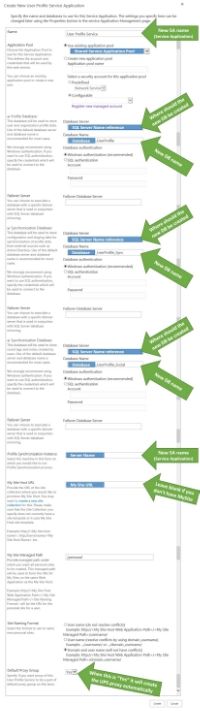
- Fill in the related fields
(If I haven't mentioned the field, it has the default settings)
a. Name: User Profile Service
b. Application Pool: Use existing application pool: Shared Services
c. Profile Database:
i. Database Server: {SQL Server 2012 Name}
ii. Database Name: {Database}_UserProfile
d. Synchronization Database:
i. Database Server: {SQL Server 2012 Name}
ii. Database Name: {Database}_UserProfile_Sync
e. Social Tagging Database:
i. Database Server: {SQL Server 2012 Name}
ii. Database Name: {Database}_UserProfile_Social
f. Profile Synchronization Instance: {SharePoint Server Name} (default - current server)
f. My Sites. If you don't have, in this example we done, you can leave it blank, as default.
- Click "Create"
- Click "OK"
- See full here: User Profile Service Application Settings


Start the User Profile Synchronization Service:
Make sure the SPFarm account has local admin access to the SharePoint Server the UPS synchronisation will be running on. This then needs to be removed once the synchronisation is complete.
- Open "Central Administration"
- Click “Manage services on server”, under “System Settings”
- Find "User Profile Synchronization Service"
- Click "Start", on the right
- Fill in the Share Point Farm account
- Click "OK"


Reset the IIS:
- Open "Command Prompt", as Administrator
- Type and enter: iisreset
- Close "Command Prompt"

Create the Profile Synchronization Connection:
- Open "Central Administration"
- Click “Manage service applications”, under “Application Management”
- Find and Select "User Profile Service"
- Click "Configure Synchronization Connection", under Synchronization
- Click "Create New Connection"
- Fill in the related fields
(If I haven't mentioned the field, i have left in the default settings.)
a. Connection Name: User Profile Synchronisation
b. Forest name: {DomainName.com} or {DomainName.local}
c. Account Name: Share Point UPSync account
This account must have "Directory replication rights" in AD (active directory)
d. Click "Populate Container"
e. Select the User Accounts you want to add
f. Click "OK"


Start the Profile Synchronization for the first time:
- Open "Central Administration"
- Click “Manage service applications”, under “Application Management”
- Find and Select "User Profile Service"
- Click "Start Profile Synchronization", under Synchronization
- Select "Start Full Synchronization"
- Click "OK"
This will take a few minuets


Wednesday, 24 July 2013
How to Update the SharePoint 2013 Term Store by Importing it from an Excel 2013 Spreadsheet
Changing your Region Settings
The first thing you need to do is make sure your region setting are formatted correctly. This is because the file format used by the SharePoint Term Store is a csv. This converts table using the “List separator” in your PC’s region settings. If you don’t set these first you have difficulty opening and converting the spreadsheet to and from a csv file format.The csv extension literally stands for Comma Separated Values.
Change the “List separator” from a semi-colon to a comma
- Open “Control Panel”
- Click “Region” or “Region and Language”, depending on your Windows operation system
- Click “Additional settings…”
- Change:
a. Decimal symbol . (full stop)
b. List separator , (comma)
Both need to change. It seems to conflict if you just change the “List separator” and not both. If they are both comma’s, the csv conversion returns semi-colon’s. - Click “OK”
- Click “OK”


For another article on the same, see here: http://akbaraji.wordpress.com/2012/05/29/the-comma-and-semicolon-issue-in-excel-due-to-regional-settings-when-open-csv-file/
Import the csv sample template from SharePoint 2013 Term Store
- Open SharePoint 2013
- Click the cog (Site Actions), top right corner
- Select “Site Settings”
- Click “Term store management”, under “Site Administration”
- Select the Managed Metadata Service application, on the left tree view
- Click “View a sample import file”, on the right (properties pane)
- Click “Save”


Working on the Terms
- Open this file (ImportTermSet.csv) with Excel 2013.
If all the region setting are correct, it will open correctly, in the correctly formatted columns.

To see the raw csv, you can open it in Notepad.
For more on the Managed metadata input file format, here: http://technet.microsoft.com/en-us/library/ee424396.aspx
Compare Excel spreadsheet with Term Store
What will the spreadsheet going to look like in the Term Store?

Save to csv
If you have competed creating the terms in Excel and have the spreadsheet in xlsx format and you want to re-save it to into csv format.- Open Excel 2013
- Click "File" tab, on the Ribbon
- Select "Save As", on the left
- Click "Browse"
- Select the file type: CSV (Comma delimited) (*.csv)
- Give the file a relative name
e.g. ImportTermSetNew

Import csv to SharePoint 2013 Term Store
Remember permission. The authentication account which you use to access the Term Store Management Tool, must be listed as a "Term Store Administrator", or you will not be able to accomplish this task.
- Open SharePoint 2013
- Click the cog (Site Actions), top right corner
- Select “Site Settings”
- Click “Term store management”, under “Site Administration”
- Select the Managed Metadata Service application, on the left tree view
- On the left, in the tree view, select the “Term Group” you would like to upload to.
- Select “Import Term”
e.g.: Test Term Group
- Click “Browse”
- Choose the relevant csv file
e.g.: ImportTermSetNew.csv - Click “OK”


Subscribe to:
Posts (Atom)